![logo-inverted@1x.png]](https://support.alcatraz.ai/hs-fs/hubfs/logo-inverted@1x.png?height=40&name=logo-inverted@1x.png)
You can set up the Rock X device to play sounds or voice messages on various security events such as authenticating, tailgating, or crossing.
Audio notifications are available only on Rock X devices with built-in speakers and running firmware version 4.5.0 or later.
The device suppresses audio notifications during SIP intercom calls.
The following Alcatraz Admin Portal roles can configure audio notifications:
- Account Administrator
- Installer
Configuring Audio Notifications on a Single Device
Take the following steps to configure audio notifications on a single Rock device:
- Log in to Alcatraz Admin Portal as a supported role.
- In the left menu, go to Device Management > Devices.
- In the list of devices, click the device to configure.
- From the Settings drop-down menu on the right, select Modify.
- Expand Audio Controls.
- Toggle Audio Notifications on.
- Use the controls to configure the sounds emitted by the Rock device:
- Use Output Volume to set the volume of all audio notifications at once.
- Use the check boxes to enable or disable the alerts for the separate event types.
- Use the drop-down boxes to select one of the predefined choices for a sound clip to play for the separate event types.
- Use the individual sliders to set the volume for the separate event types.
- Click Submit at the bottom of the page.
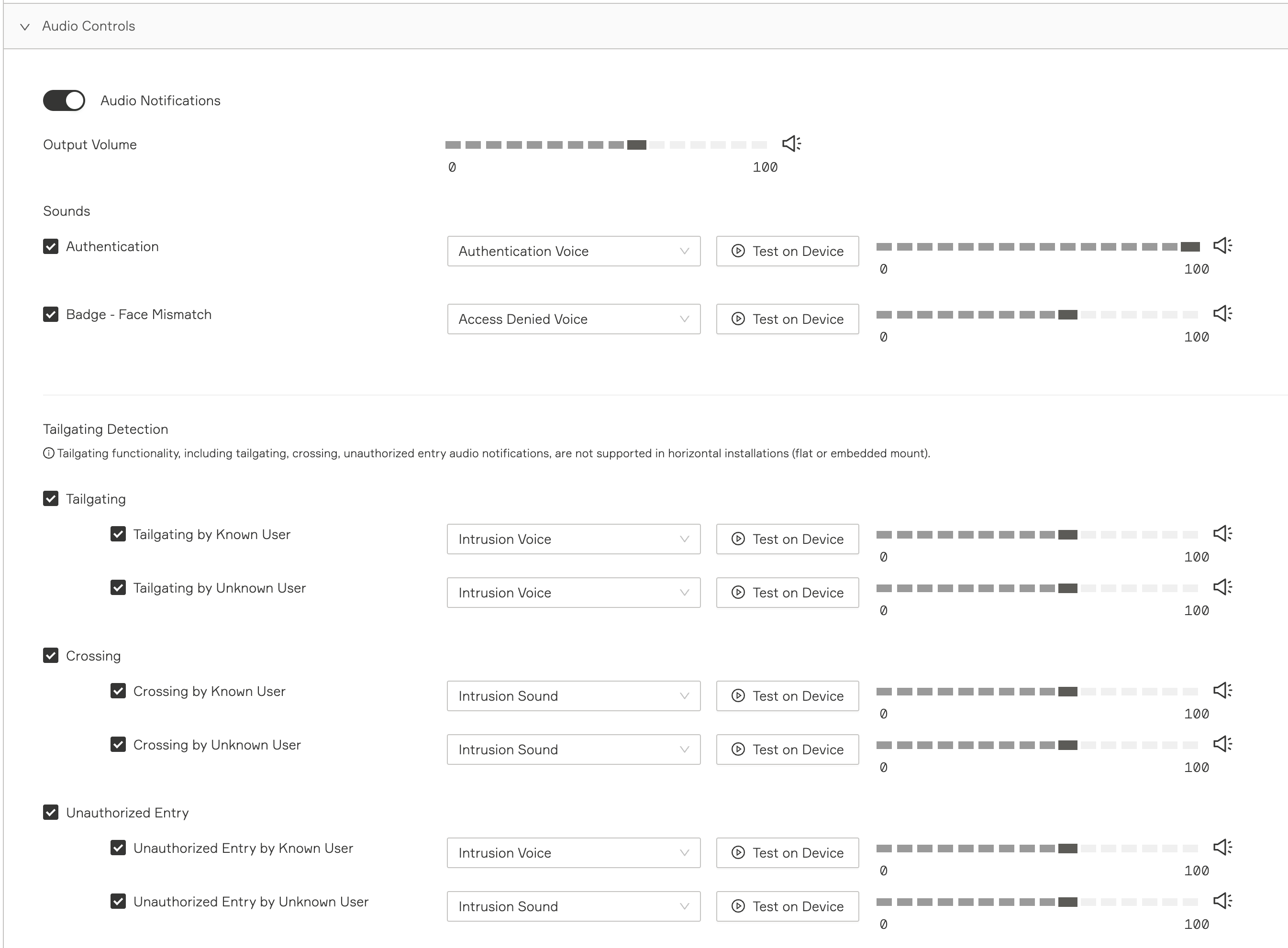
You can set audio notifications for the following event types:
- Authentication—Played on successful authentication, regardless of whether the device is running in 1FA, 1FAF, or 2FA mode.
- Badge - Face Mismatch—Played in 2FA mode when the face recognized does not match the presented badge.
- Tailgating:
- Tailgating by Known User—Played when another person with a profile in the system enters with the authenticated person before the door closes, without pausing to authenticate.
- Tailgating by Unknown User—Played when another person without a profile in the system enters with the authenticated person before the door closes.
- Crossing:
- Crossing by Known User—Played when another person with a profile in the system enters while the door is still open following the exiting of the authenticated person.
- Crossing by Unknown User—Played when another person without a profile in the system enters while the door is still open following the exiting of the authenticated person.
- Unauthorized Entry:
- Unauthorized Entry by Known User—Played when a person with a profile in the system enters alone even though they have not properly authenticated. This is most often seen if the door is not locked, is propped open, or someone opens the door for someone from the other side.
- Unauthorized Entry by Unknown User—Played when a person without a profile in the system enters alone. This is most often seen if the door is not locked, is propped open, or someone opens the door for someone from the other side.
Configuring Audio Notifications on Multiple Devices
Take the following steps to make the same audio notifications configuration on two or more Rock devices:
- Log in to Alcatraz Admin Portal as a supported role.
- In the left menu, go to Device Management > Devices.
- Select two or more devices in the list.
- From the Bulk Actions drop-down menu on the right, select Device Configuration.
- Check Audio Controls.
- Toggle Audio Notifications on.
- Configure the sounds taking the same steps as when configuring audio notifications on a single device.
- Click Submit at the bottom of the page.