![logo-inverted@1x.png]](https://support.alcatraz.ai/hs-fs/hubfs/logo-inverted@1x.png?height=40&name=logo-inverted@1x.png)
On this page: |
Overview
Starting with Rock Cortex 3.7.0 (formerly Alcatraz Admin Portal) and RockOS 4.6.0 (formerly Rock Firmware), as an Installer, you can onboard Rock-1 and Rock X devices on your own.
If you install Rock devices on site, your Account Administrator can create a Rock Cortex user for you with the Installer role. The administrator prepares each device's settings in advance as a pre-onboard configuration. You then onboard each device by showing it the configuration's QR code. You don't configure anything on the device, and you don't need to wait for an administrator to approve it.
As an Installer, you can:
- See the pending pre-onboard configurations of the account you have access to.
- Search them by name.
- Preview each configuration's network details.
- Display QR codes and onboard devices with them.
| Note: Before Rock Cortex 3.7.0, some accounts had a different role named Installer. In 3.7.0, that role was renamed to Integrator, with the same access and permissions. The Installer role in this article is a new role. |
Before you begin
- You have the Installer role.
- An Account Administrator has created a pre-onboard configuration for the device.
- The device runs RockOS 4.6.0 or later.
- The device is factory reset, with no configuration left from a previous installation.
Onboard a device
- On your phone or computer, open Rock Cortex in a browser and log in.
The Pre-onboard devices page opens.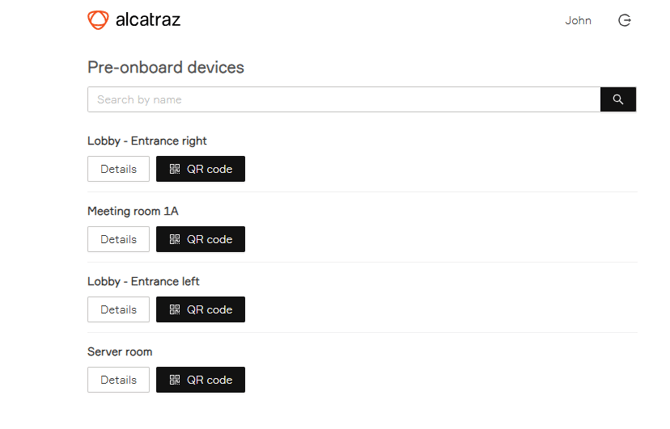
- Find the device's pre-onboard configuration. To search by name, use the search box.
- (Optional) Click Details to check the network settings the device will get, such as its IP address, gateway, DNS server, and NTP server.
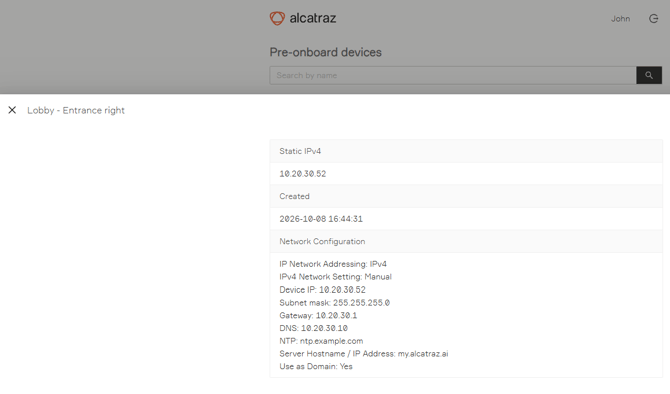
- Click QR code.
- Hold the QR code in front of the device camera until the device reads it.
The device applies the network configuration, connects to Rock Cortex, onboards, and downloads its device configuration. The configuration then disappears from your list.
| Caution: Each QR code contains the network configuration and the information needed to onboard a device to your organization's account. Don't share QR codes, screenshots, or printouts with anyone else. |
Troubleshooting
A configuration shows Needs attention
The configuration is out of date, usually because the account's access settings changed. Read the explanation shown with it, then ask your Account Administrator to update the configuration. Until it's fixed, onboarding with its QR code fails and the device shows an error message.
I can't find a device in the list
The list shows only Pending configurations. If a device isn't there, it may already be onboarded, or the administrator hasn't created its configuration yet. Contact your Account Administrator.