![logo-inverted@1x.png]](https://support.alcatraz.ai/hs-fs/hubfs/logo-inverted@1x.png?height=40&name=logo-inverted@1x.png)
On account level, you can set a preference to allow devices to update automatically to the latest available firmware version.
Updating devices manually will still be possible.
Automatic firmware updates work by checking daily for the availability of a new firmware file and then updating the devices with it. Other than the automatic check, automatic firmware updates work the same way as a bulk update that you can schedule under Device Management > Devices.
Only onboarded devices are included for an update.
We recommend choosing a schedule time outside of business hours to minimize downtime. The update speed of a device mainly depends on the network speed, which determines how fast the firmware file will be transferred to the device. To learn more about how scheduled updates distribute the load, see Updating Rock Firmware Manually or On a Schedule.
The following Alcatraz Admin Portal roles can schedule automatic firmware updates:
- Account Administrator
Take these steps to allow and schedule automatic firmware updates:
- Log in to Alcatraz Admin Portal as a supported role.
- In the left menu, go to Accounts > Account Settings.
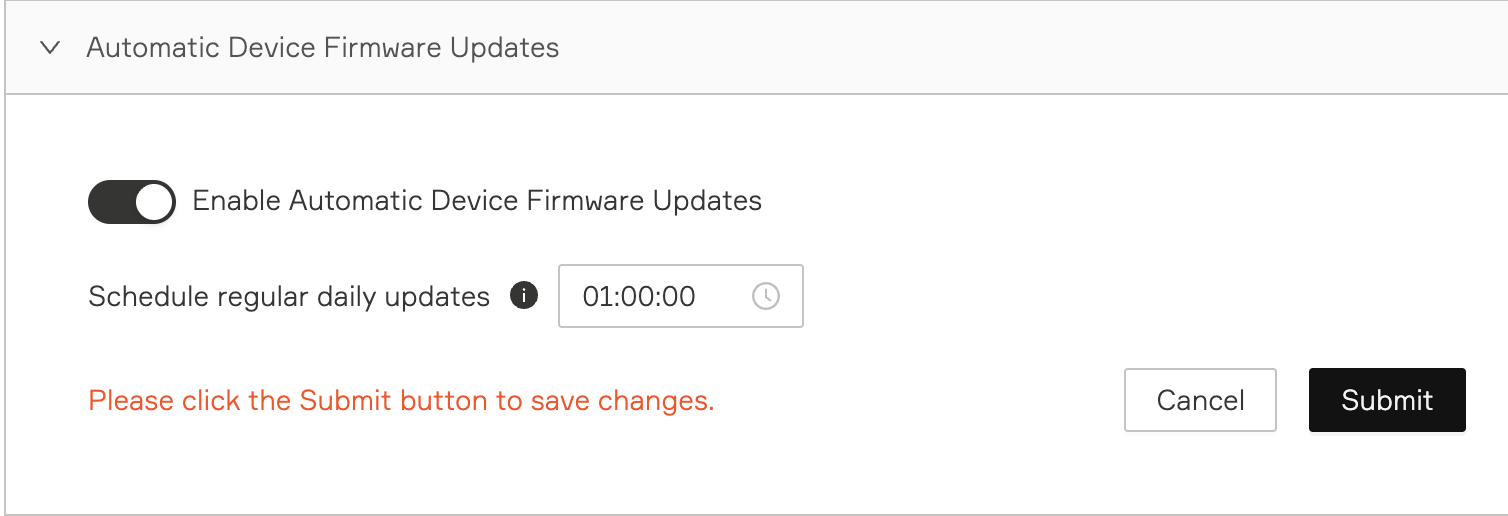
- Under Account Configuration, expand Automatic Device Firmware Updates.
- Click Enable Automatic Device Firmware Updates.
- In Schedule regular daily updates, use the time picker to select the time of day at which to start the firmware check and update.
- Click Submit.
New update jobs appear on the Device Management > Updates page.