![logo-inverted@1x.png]](https://support.alcatraz.ai/hs-fs/hubfs/logo-inverted@1x.png?height=40&name=logo-inverted@1x.png)
On this page: |
Overview
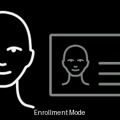
When a Rock device is in enrollment mode, it guides each person through enrollment step by step and reports the outcome or the reason it failed. This article explains what the person sees and hears at each step, what each outcome means, and how to fix failures.
| Note: Rock X and Rock-1 devices show the same display icons, but the icons are smaller on Rock-1. Rock-1 devices don't play audio. They guide the person with the display and LEDs only. On Rock X, each voice prompt plays only if it's turned on in Rock Cortex. |
Requirements for successful enrollment
- The device is in enrollment mode, either as its regular mode or through Temporary Enrollment. For details, see Set up manual enrollment.
- The device is online.
- The device isn't in a turnstile mount.
- There's some light at the device. Enrollment isn't possible in complete darkness (0 lux).
- The person has a badge that:
- Isn't on the biometric opt-out list.
- Isn't in another person's profile.
- Has access rights in the ACS, if the account has an ACS integration.
- If the account uses consent-based enrollment, the person has given consent.
Field of view during enrollment
During enrollment, Rock devices use a narrower field of view: 20° to the left and 40° to the right of the device center. People outside these angles, such as an instructor standing next to the person enrolling, don't count as a second person and don't cause enrollment to fail.
Authentication uses the regular field of view. For details, see Configure the Field of View for Rock devices.
Enrollment flow
During enrollment, the LEDs are white. They turn green on success and red on failure.
|
Step |
What happens |
Display |
Audio (Rock X) |
|---|---|---|---|
|
0. Device ready |
Nobody is in view. The display is idle. |
Idle |
— |
|
1. Person approaches |
The device detects one person and prompts them to swipe their badge. |
|
"Swipe badge to enroll." |
|
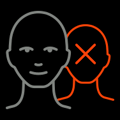
If more than one person is in view, the device prompts them to stand alone. |
|
"Stand alone to enroll." |
|
|
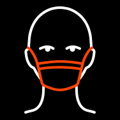
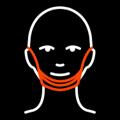
If the person wears a mask for more than 1 second, the device prompts them to remove it. The mask doesn't stop enrollment from starting; it fails only if the mask hides the face for most of the scan, including masked moments during the countdown. |
|
"Remove mask to enroll." |
|
|
2. Person swipes badge |
Enrollment starts, even if the person isn't fully in view yet. |
— |
— |
|
With consent-based enrollment, the device first checks with Rock Cortex that the badge holder gave consent. |
|
"Checking for consent." |
|
|
3. Countdown |
The device shows 3-2-1 and asks the person to look at it. This gives them time to move into view. |
|
"Enrollment is starting, please look at the device." |
|
4. Position check |
When the countdown ends, the device checks that the person is fully in view, and prompts them to move left, right, forward, or back as needed. |
|
"Move left."
"Move right."
"Step forward."
"Step back." |
|
5. Face capture |
The device scans the face and checks that it's a real, live face. |
|
"Hold still." |
|
6. Profile saved |
The device saves the profile, sends it to Rock Cortex, and waits up to 10 seconds for confirmation. |
|
"Profile is being saved, please wait." |
|
7. Profile confirmed |
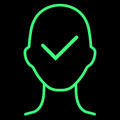
Rock Cortex confirms the profile. The device shows the success icon and turns the LEDs green. |
|
One of the success prompts below. |





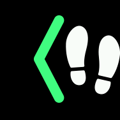

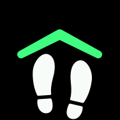


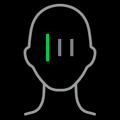
Success outcomes
All three outcomes show the same success icon and green LEDs. Only the audio differs.
|
Outcome |
When it happens |
Audio (Rock X) |
|---|---|---|
|
Profile created |
The person has no profile, and the badge isn't in use. |
"Enrollment complete." |
|
Profile updated |
The person has a profile and swiped a badge that's already in it. |
"Profile updated successfully." |
|
Badge added |
The person has a profile and swiped a new badge, which is added to it. |
"Badge added to profile." |
Troubleshooting
Use the tables below to identify why enrollment can't start or why an attempt failed.When enrollment can't start
In these situations, the device doesn't start enrollment. It shows a warning screen and turns the LEDs red, even if nobody is in view.
|
Situation |
Display |
Audio (Rock X) |
What to do |
|---|---|---|---|
|
The device is offline. Rock Cortex logs a Device Offline event, not an Enrollment Failure event. If a person swipes a badge anyway, enrollment fails (see below). |
|
"The device is offline. Enrollment unavailable." |
Restore the device's network connection to Rock Cortex. |
|
The device was set to Enrollment mode or Temporary Enrollment, and then installed in a turnstile mount. |
|
"Enrollment is not supported in this orientation." |
Manual enrollment isn't supported in turnstile mounts. Use a device in a door mount. |



Enrollment failures
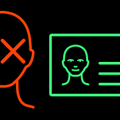
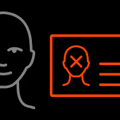
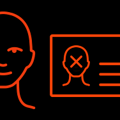
If enrollment fails, the device shows a failure icon and turns the LEDs red. Rock X also plays a prompt with the reason. This table lists failures by the step of the enrollment flow where they happen.
|
Step |
What happens |
Display |
Audio (Rock X) |
|---|---|---|---|
|
2 |
A person swipes a badge while the device is offline. Unlike the offline screen, this creates an Enrollment Failure event. |
|
"Enrollment failed. The device is offline." |
|
2 |
The badge holder hasn't given consent. |
|
"Enrollment failed. Consent required." |
|
2 |
Rock Cortex doesn't answer the consent check within 10 seconds. |
|
"Enrollment failed. Please try again." |
|
2 |
The device can't reach Rock Cortex during the consent check. |
|
"Enrollment failed. The device is offline." |
|
2 |
A different badge is presented during the consent check. |
|
"Enrollment failed. Different badge detected." |
|
4 |
Nobody is in view when the countdown ends, or the person doesn't get into position within 10 seconds. |
|
"Enrollment failed. Please stay in view of the device." |
|
4, 5 |
Another person comes into view. |
|
"Enrollment failed. Stand alone to enroll." |
|
5 |
The person leaves the field of view. |
|
"Enrollment failed. Please stay in view of the device." |
|
5 |
A mask hides the face for most of the scan. |
|
"Enrollment failed. Mask detected." |
|
5 |
The face fails the liveness check, the scan quality is too low, or the device can't build a profile from the scan. |
|
"Enrollment failed. Please try again." |
|
6 |
The device loses its connection to Rock Cortex. |
|
"Enrollment failed. The device is offline." |
|
7 |
The badge is on the biometric opt-out list. |
|
"Enrollment failed. Biometrics opted out." |
|
7 |
The badge is already in another person's profile. |
|
"Enrollment failed. Badge already in use." |
|
7 |
The ACS denies access for the badge (accounts with an ACS integration). |
|
"Enrollment failed. Access denied." |
|
7 |
Rock Cortex doesn't respond within 10 seconds. |
|
"Enrollment failed. The device is offline." |
|
7 |
Rock Cortex returns an unexpected error. |
|
"Enrollment failed. Please try again." |


Security events for manual enrollments
The Security Events page shows two event types for manual enrollment:
- Manual Enrollment Completed: Rock Cortex confirmed the profile. Logged for all three success outcomes: profile created, profile updated, and badge added.
- Enrollment Failure: an attempt failed. Open the event to see the reason. If you need help, contact Customer Support.